Professional headshots cost hundreds of dollars and half a day of your time — and they often come back over-smoothed and barely recognizable. An AI headshot generator for women can produce a polished, LinkedIn-ready photo in under a minute, for a few cents, with zero retouching you didn't ask for.
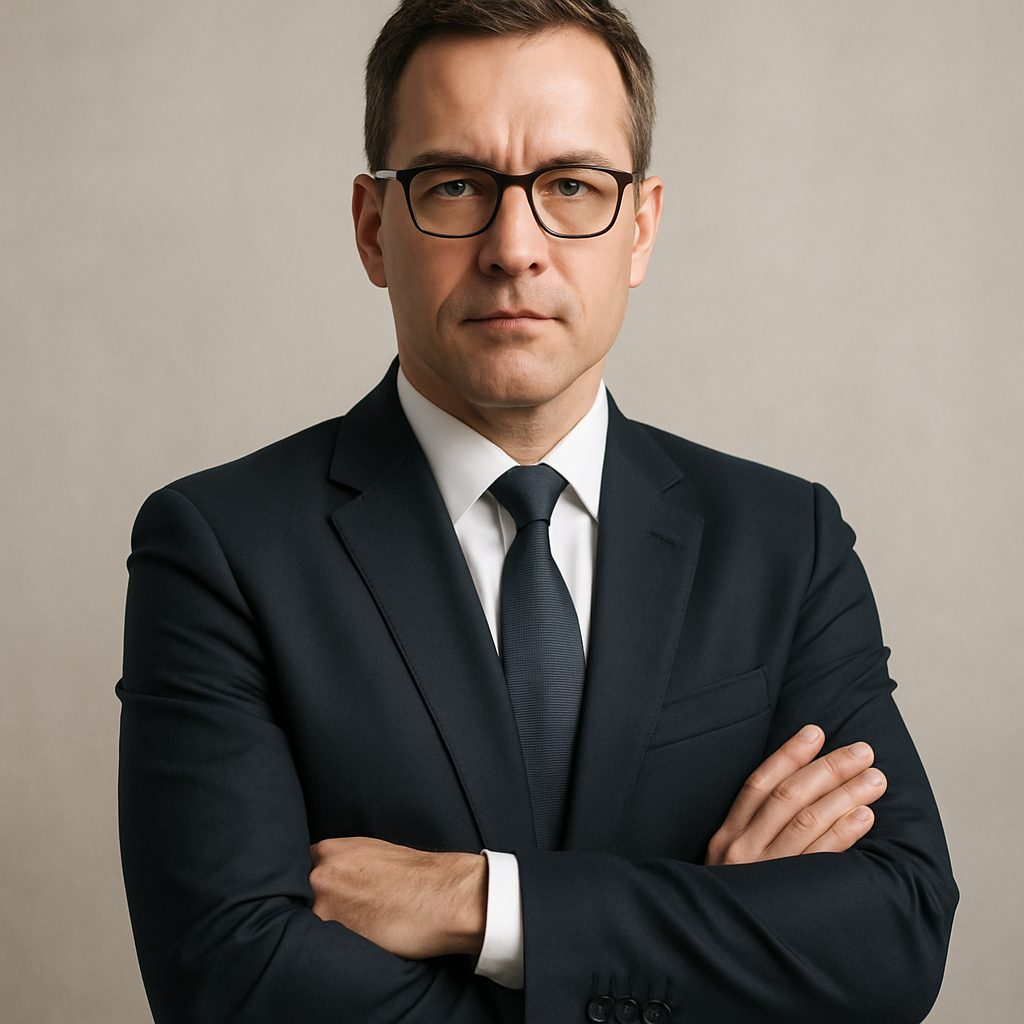
Quick answer: An AI headshot generator lets you describe the look you want — hair, clothing, lighting, background — and produces a professional-quality photo instantly. ATXP Pics charges per image with no subscription, so you can generate several variations and pick the best one without committing to a monthly plan.
What Makes a Good AI Headshot for Women
A good AI headshot looks like it was taken by a photographer, not generated by software. The difference comes down to three things: realistic skin texture, natural lighting, and clothing that fits the context (LinkedIn vs. creative portfolio vs. speaker bio).
Most AI images that look "fake" do so because the prompt was vague. When you give the generator specific details — the color of your blazer, the length of your hair, the warmth of the light — it has enough information to build something that reads as real.
What separates a professional result from a generic one:
- Skin texture — ask for "natural skin texture" instead of letting the default produce porcelain-smooth skin
- Lighting direction — "soft studio lighting" or "natural window light from the left" beats no instruction at all
- Background — a simple, slightly out-of-focus background (grey, white, or blurred office) reads as professional
- Expression cues — "confident and approachable" or "warm, direct eye contact" shapes the expression more than you'd expect
How to Write a Prompt That Gets You the Headshot You Want
The prompt is everything — a detailed description produces a usable image on the first or second try. Think of it the way you'd brief a photographer before a shoot: appearance, wardrobe, setting, mood.
Step 1: Describe Your Appearance
Start with what you look like. Include hair color and length, approximate skin tone, and any distinctive features you want represented. You're not uploading a photo, so specificity matters.
Step 2: Specify Clothing and Style
Name the garment and color. "Navy blue blazer over a white blouse" is better than "professional outfit." If you want the headshot to look like it's for a creative industry, a more relaxed top reads differently than a structured jacket.
Step 3: Set the Lighting and Background
Pick one lighting style and one background type. Mixing too many instructions here can produce inconsistent results.
Step 4: Add a Mood or Expression Note
Finish with how you want to come across. "Confident and warm, slight smile, direct eye contact" gives the generator a human target to aim for.
Here's a complete, copy-ready prompt:
Professional headshot of a woman in her mid-30s, shoulder-length dark brown hair, medium skin tone, wearing a charcoal grey blazer over a soft white blouse. Soft studio lighting, slightly blurred light grey background. Natural skin texture, no heavy retouching. Expression: confident and approachable, slight smile, direct eye contact. Portrait orientation, shot from the chest up.
Run this, tweak one element at a time, and you'll have a set of usable options within minutes.
Common Mistakes That Make AI Headshots Look Off
The most common problem is a prompt that's too short. One sentence rarely gives the generator enough to work with, and the result tends toward generic.
Other mistakes worth avoiding:
- Asking for "beautiful" or "perfect" — these words push the output toward idealized, over-smoothed skin. Use "natural" instead.
- No background instruction — without guidance, backgrounds can be distracting or inconsistent. Always name one.
- Forgetting clothing color — "professional clothing" is vague. Specify the garment and color so the result matches what you'd actually wear.
- Ignoring framing — "chest up, portrait orientation" tells the generator how to compose the shot. Leave it out and you might get a full-body image or an awkward crop.
- Skipping the expression note — expression is what makes a headshot feel like you. Don't leave it to chance.
Using AI Headshots for Different Contexts
The right headshot depends on where it's going to live. A LinkedIn profile photo has different expectations than a speaker bio or a company about page.
LinkedIn and Corporate Profiles
Go conservative: neutral background, structured clothing, direct expression. Stick to grey, white, or soft blue backgrounds. Avoid anything that reads as casual.
Creative and Freelance Portfolios
You have more room here. A textured background, a pop of color in the clothing, or a slightly warmer expression all work well. The headshot should feel like the brand you're selling.
Speaker Bios and Press Pages
These often sit next to a lot of text, so contrast matters. A clean, light background with darker clothing tends to read well at smaller sizes. A confident, direct expression works better than a soft smile here.
What It Costs Compared to a Professional Session
A professional headshot photographer charges $150–$500 for a session, and you typically get 2–5 edited images back. If you want to update your photo every year or create variations for different platforms, that cost multiplies.
With ATXP Pics, you pay a few cents per image. Generate ten variations, pick three, and your total spend is still under a dollar. Your balance never expires, so there's no pressure to use it up before a billing cycle resets.
| Option | Cost | Images | Subscription? | |---|---|---|---| | Professional photographer | $150–$500 | 2–5 edited | No, but one-time high cost | | Midjourney Basic | $10/month | ~150/month | Yes — charged every month | | ATXP Pics | Cents per image | As many as you want | No — pay only when you create |
The math is straightforward for anyone who doesn't need dozens of images every month.
Getting the Most Out of Your Results
Generate at least three to five variations before settling on a final image. Small changes to the prompt — swapping "soft studio lighting" for "natural window light," or changing the blazer color — produce noticeably different results, and one of those variations will almost always be stronger than the first output.
When you find a result you like, save the prompt. It becomes a reusable template you can tweak for future updates or different platforms, so you're not starting from scratch next time.
The goal isn't a perfect image on attempt one. It's having enough options to choose confidently — and at a few cents per image, running five variations costs less than a cup of coffee.