Your phone screen is one of the most-seen surfaces in your life — you glance at it dozens of times a day. Yet most people settle for a stock photo or a default gradient. Generating a custom AI image for a phone wallpaper takes about two minutes and produces something genuinely yours. This guide walks through every step, including the prompts that actually work.
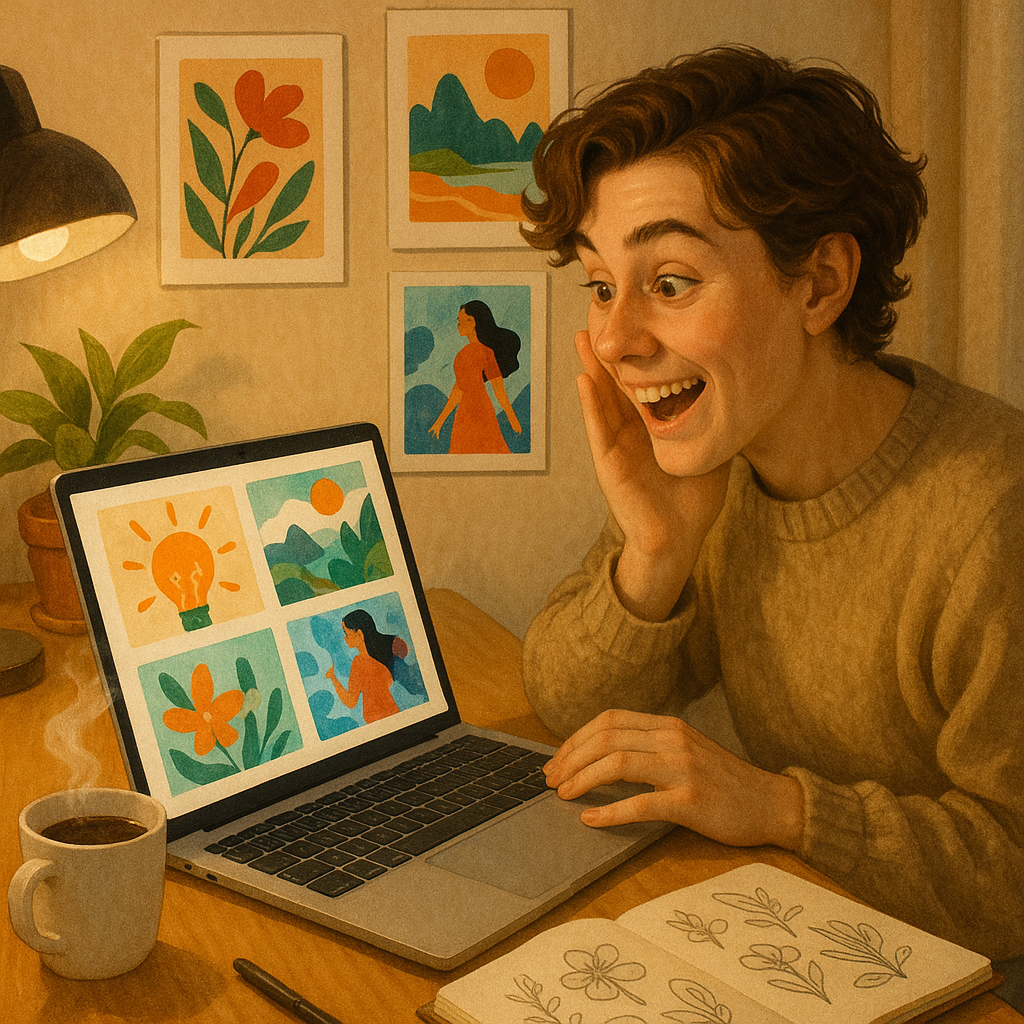
Quick answer: Type a description of what you want to see on your phone screen, generate the image at ATXP Pics, download it to your phone, and set it as your wallpaper. No subscription, no design software, no templates — just a few cents per image and a result that matches your style exactly.
What Makes a Phone Wallpaper Different from Any Other Image
A phone wallpaper has specific constraints that a generic image ignores. It needs to be tall and narrow (portrait orientation), it gets partially covered by your clock and app icons, and it has to look sharp on a high-resolution screen. If you generate a landscape or square image and crop it to fit, you'll almost always lose the most interesting part of the composition.
The fix is simple: tell the generator exactly what you need in the prompt itself. Describing "portrait orientation, vertical composition" and noting where your UI elements will sit gives the result a much better chance of working out of the box.
Step 1: Decide What You Actually Want on Your Screen
Start with mood before subject — how do you want to feel every time you look at your phone?
Some starting points to consider:
- Calm and minimal — soft gradients, muted palettes, abstract botanicals, foggy landscapes
- Bold and graphic — high-contrast geometric patterns, vivid colors, stylized portraits
- Personal and specific — your city's skyline, your favorite season, a fictional world from a book you love
- Aesthetic-coded — cottagecore, dark academia, cyberpunk, lo-fi, vaporwave
Write down three words that describe what you're going for. Those words will anchor your prompt.
Step 2: Write a Prompt That Works for a Phone Screen
The most common mistake is a prompt that doesn't account for phone dimensions or UI coverage. A wallpaper prompt needs a few extra details that a regular image prompt doesn't.
Include orientation and composition
Always add "portrait orientation" or "vertical composition" to your prompt. If you want your clock readable at the top and your apps visible at the bottom, add "uncluttered sky or negative space at top and bottom."
Describe color and mood precisely
Vague prompts produce generic results. Instead of "nature scene," try "dense rainforest at golden hour, shafts of light through canopy, deep greens and warm amber."
Specify an art style
Photo-realistic, watercolor, oil painting, flat illustration, 3D render — each produces a completely different look. Pick one that matches your phone's aesthetic.
A copy-able prompt example
"Portrait orientation wallpaper, a lone lighthouse on a rocky coast at dusk, dramatic storm clouds parting to reveal one beam of warm light, deep navy and burnt orange palette, painterly brushwork, vertical composition with open sky at top and foreground rocks at bottom, ultra-detailed"
That single prompt covers orientation, subject, lighting, color, style, and composition. It gives you something ready for your screen.
Step 3: Generate and Review
Go to ATXP Pics AI Art Generator, paste your prompt, and hit generate. No account setup is required before you try it — no subscription, no monthly commitment. Each image costs a few cents, and your balance never expires if you want to come back next month.
Once your image appears:
- Check that the composition works vertically — is the focal point centered without being cut off?
- Look at the top and bottom thirds — will your clock and app icons overlap something you care about?
- Check the colors at full brightness and at reduced brightness (how your screen often displays on battery saver).
If anything feels off, tweak the prompt and generate again. Iterations are cheap — adjusting one detail and regenerating costs the same as the first try.
Step 4: Download and Set Your Wallpaper
Download the image directly to your phone's camera roll, then set it as wallpaper through your phone's settings. Both iOS and Android let you crop and position during the wallpaper-setting step, so if the image is slightly off-center you can nudge it.
On iPhone
Settings → Wallpaper → Add New Wallpaper → Photo → select your image → crop to fit → Set
On Android
Long-press your home screen → Wallpapers → My Photos → select your image → position → Set
If you want different wallpapers for your lock screen and home screen, generate two variations — same mood, different level of detail. A busier image works well on the lock screen where no icons obscure it; a calmer version suits the home screen.
Common Mistakes to Avoid
- Generating a square or landscape image and hoping it crops well. It usually doesn't.
- Prompting for a face as the central subject — faces get cut in half by notification bars or look unsettling when partially covered.
- Ignoring the color temperature of your screen. Cool-toned screens wash out warm palettes; check your result at your actual screen settings before deciding.
- Over-prompting detail into every corner. Busy corners compete with your icons. Leave breathing room.
How Much Does This Actually Cost?
Wallpaper generators that require subscriptions charge you whether you use them or not. At ATXP Pics, you pay per image — a few cents each. There's no monthly fee and no expiry on your balance.
| Scenario | Midjourney Basic ($10/mo) | ATXP Pics (pay-per-image) | |---|---|---| | 5 wallpapers in a month | $2.00 per image | ~$0.10 per image | | 1 wallpaper in a month | $10.00 per image | ~$0.10 per image | | 0 wallpapers in a month | $10.00 (still charged) | $0.00 |
If you want a new wallpaper every season — or just once — pay-per-image makes far more sense.
Your Screen Deserves Better Than a Stock Photo
A custom AI image for your phone wallpaper costs less than a pack of gum and takes less time than picking a stock photo you've already seen a hundred times. Describe your mood, your colors, your vibe — and walk away with something no one else has on their screen.