You have a project in your head but can't find a reference image that matches it — the color combination is wrong, the style is off, or it simply doesn't exist anywhere online. An AI image generator for crafters solves exactly that problem: describe what you want, get a precise visual reference in seconds, then get to work.
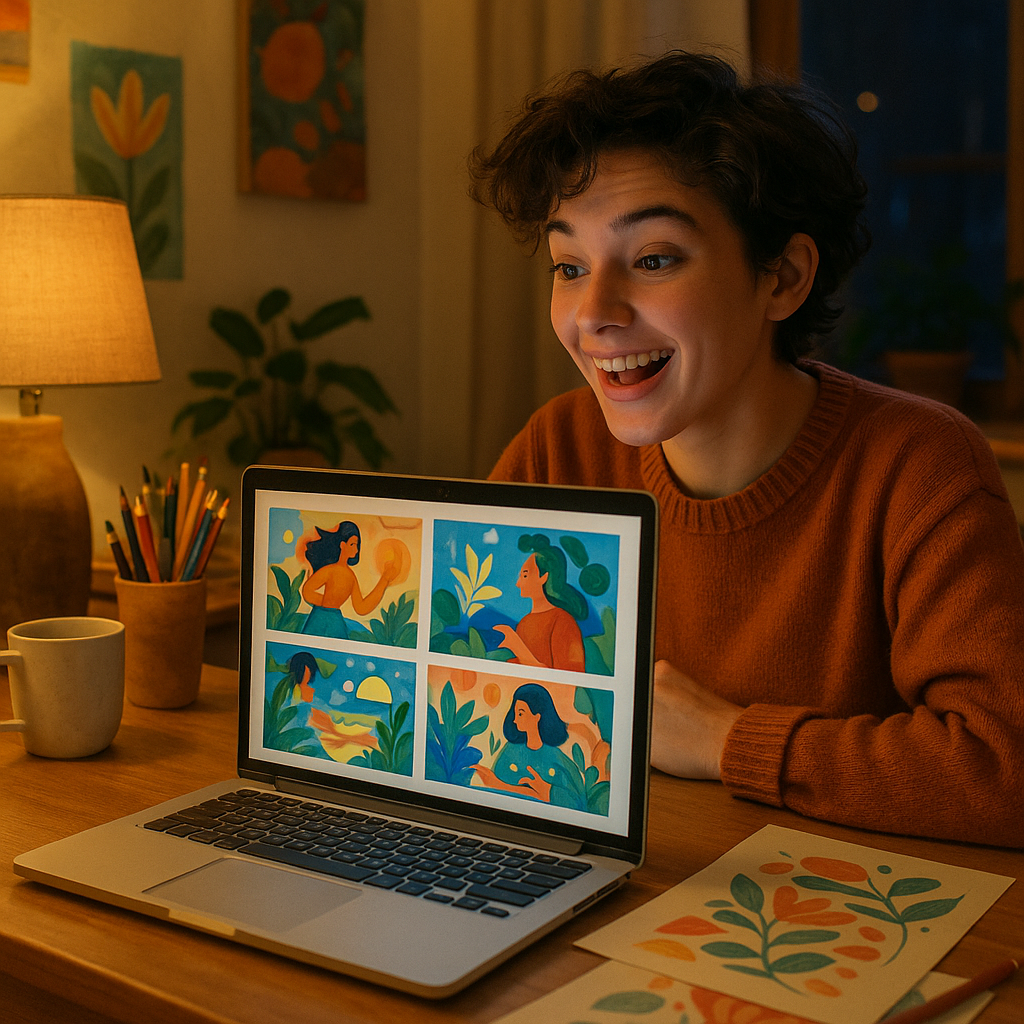
Quick answer: Crafters use AI image generators to create custom reference images, explore color palettes, visualize project layouts, and generate pattern inspiration before committing time and materials. You describe the style, colors, and composition you want in plain English. The generator produces a high-quality image you use as a visual guide — no design skills, no subscription required.
What Crafters Actually Use AI Images For
AI-generated images solve the "I can't find a reference for this" problem that every crafter runs into eventually. Stock photo sites and Pinterest boards are useful, but they only show you what already exists. If you want a hexagon quilt in terracotta, dusty sage, and cream — with a vintage linen texture — that specific combination probably isn't sitting in a search result waiting for you.
Here's what crafters use AI-generated reference images for in practice:
- Color palette exploration — see how a color combination actually looks together before buying yarn, fabric, or paint
- Layout and composition — visualize how a wreath, quilt block, or wall hanging will be arranged
- Style direction — compare a "cottagecore" versus "modern minimalist" version of the same project
- Texture and material reference — see what macramé, linen, or watercolor paper looks like in a specific context
- Gift and custom project planning — visualize a personalized item before making it
How to Write Prompts That Give You Useful References
The more specific your prompt, the more useful the output. Vague prompts produce generic images. Craft-specific prompts produce images you can actually work from.
Build your prompt in layers
Use this structure:
- Subject — what the finished piece is
- Style — the aesthetic or medium it should look like
- Colors — specific names, not just "colorful"
- Composition or layout details — symmetrical, repeating, centered, overhead view
- Mood or finish — rustic, modern, delicate, bold
Prompt examples to copy and adapt
"A symmetrical embroidery hoop design featuring wildflowers — chamomile, lavender, and poppies — in a botanical illustration style. Soft muted colors: dusty rose, sage green, and cream on a white linen background. Overhead flat-lay view."
"A hexagon quilt layout in warm earth tones — terracotta, burnt orange, mustard yellow, and off-white. Modern geometric style. Clean overhead shot showing the full quilt pattern."
"A macramé wall hanging with trailing fringe and woven leaf shapes. Natural cotton cord texture. Boho style. Hung against a warm white plaster wall."
What to adjust if the result isn't quite right
- Too busy? Add "simple," "minimal," or "clean composition" to your prompt
- Wrong color temperature? Specify "warm tones only" or "cool, muted palette"
- Wrong scale? Add "close-up detail" or "full piece shown"
Using AI Images at Each Stage of a Project
AI reference images are useful at the start, middle, and finish of a project — not just the planning phase.
Planning stage
Generate several variations of your concept before buying materials. Swap colors, try different layouts, and compare styles side by side. Spending a few cents per image is significantly cheaper than buying the wrong yarn twice.
Mid-project decisions
Hit a decision point — what color for the border? How to fill the negative space? Generate a reference image of the specific element you're stuck on rather than trying to visualize it mentally.
Showing clients or gift recipients
If you make custom pieces, generating an AI preview of what you're planning to make helps set expectations before you start. It's a quick, low-cost way to confirm direction.
Step-by-Step: From Idea to Reference Image
- Write out your project idea in one sentence. Don't edit yet — just capture it. "I want to make a cross-stitch sampler with mushrooms and moss in an autumnal color palette."
- Add the five layers from the prompt structure above: subject, style, colors, composition, mood.
- Generate the image. Generate an image →
- Evaluate and adjust. What's right? What needs changing? Revise one element at a time.
- Save the image as your reference. Pin it, print it, or keep it open on your phone while you work.
- Repeat for detail shots. If you need a closer look at a specific element — the stitch texture, the border treatment — generate a focused image of just that part.
Cost Comparison: AI Generator vs. Monthly Subscription
If you're creating project references occasionally — a few images per project, several projects a year — a monthly subscription to an AI tool is poor value.
| Scenario | Midjourney Basic ($10/mo) | ATXP Pics (pay-per-image) | |---|---|---| | 5 images/month | $2.00 per image | A few cents per image | | 20 images/month | $0.50 per image | A few cents per image | | Months you don't craft | $10 charged anyway | $0 charged | | Unused credit | Expires with plan | Never expires |
No subscription means you're only paying during months you're actually creating. For crafters who work seasonally — holiday projects in fall, garden-inspired pieces in spring — that matters.
Common Mistakes Crafters Make With AI Reference Images
The biggest mistake is treating the first result as final. The first image is a starting point. Iterate.
- Don't use vague color descriptions. "Blue and white" produces something generic. "Pale powder blue and warm antique white" gets you somewhere useful.
- Don't forget the viewpoint. For quilts and flat pieces, add "overhead view." For 3D pieces like wreaths or sculptures, add "front-facing" or "slight angle."
- Don't expect a printable pattern file. AI generators produce reference images, not SVG cut files or cross-stitch charts. Use the image as a visual guide, then build your actual pattern in whatever tool you normally use.
- Don't skip the detail pass. After getting the overall composition right, generate a closer image of the element you'll find hardest to execute — that's where a reference image saves the most time.
Start With One Project
Pick the project you're planning right now — the one where you're still deciding on colors or layout. Write a prompt describing exactly what you want it to look like, and generate a reference image before you buy a single skein of yarn or cut a piece of fabric.
Generate your first crafting reference image →
No subscription to start. No design skills required. Add credit when you need it, and your balance never expires. Describe what you're making — get an image that helps you make it better.