Your Twitter/X banner is the first thing people see when they click your profile, and most people leave it blank or slap on a blurry stock photo. This guide shows you exactly how to use an AI image generator for Twitter banner creation—step by step, with real prompt examples you can copy and adapt right now.
Quick answer: Describe your ideal banner in plain English on ATXP Pics, and you'll have a 1500×500-ready image in seconds. No design tools, no subscription, no monthly charge waiting in the background. Pay a few cents per image, only when you generate.
Why Your Twitter/X Banner Matters More Than You Think
Your banner is prime real estate that 99% of profiles waste. When someone checks your profile before deciding to follow you, their eyes land on the banner before they read a single tweet. A strong banner communicates your niche, your personality, and your professionalism in under a second—before any words do the work.
The practical problem: designing something that actually looks good requires tools most people don't own, skills most people haven't practiced, and time most people don't have. That's where an AI image generator changes the equation entirely.
What Makes a Good Twitter/X Banner
A good banner does one job: instantly signal what you're about. Before you write a single prompt, answer these three questions:
- What's your main topic or identity? (developer, photographer, fitness coach, crypto trader, musician, small business owner)
- What's your visual tone? (clean and minimal, dark and dramatic, bright and energetic, warm and approachable)
- What colors, if any, are you already using? (profile photo background, website palette, brand colors)
A banner that answers all three visually is a banner worth having. Vague or generic images—sunsets, cityscapes, abstract blurs—communicate nothing and blend into every other profile.
Step-by-Step: Generate Your Banner with AI
The whole process takes under five minutes. Here's exactly how to do it.
Step 1: Define Your Banner Concept in One Sentence
Before opening any tool, write one sentence that captures what you want. Example: "A dark, cinematic wide-format image of a home recording studio with warm lamp lighting and guitar on the wall." That sentence is already most of your prompt.
Step 2: Add the Technical Specs to Your Prompt
Twitter/X banners display at 1500×500 pixels—a 3:1 landscape ratio. Include that context in your prompt so the composition works for the shape.
Prompt example: "Wide landscape banner, 3:1 ratio. Dark cinematic home recording studio, warm amber lamp light, acoustic panels on walls, guitar hanging in background, shallow depth of field, no text, photorealistic."
Notice: no text in the image itself (text rarely renders cleanly), clear aspect ratio instruction, and specific mood words rather than vague ones.
Step 3: Generate and Evaluate
Head to ATXP Pics Social Media Image Creator, paste your prompt, and generate. Look at the result and ask:
- Does the composition work horizontally without important elements at the far edges?
- Is the left-center area clear enough for your profile photo to sit on top without clashing?
- Does the overall feel match what you wanted?
Step 4: Refine Your Prompt
If the first result isn't quite right, adjust one variable at a time. Changing too much at once makes it hard to know what fixed the problem.
| What's wrong | What to add or change | |---|---| | Too dark, can't see details | Add "well-lit" or "bright ambient light" | | Too busy, cluttered | Add "minimalist", "clean composition", "negative space" | | Wrong color tone | Specify exact colors: "cool blue tones", "warm golden hour" | | Looks generic | Add specific props, settings, or style references | | Composition cuts off wrong | Add "centered subject", "wide establishing shot" |
Step 5: Download and Upload to Twitter/X
Once you have a result you like, download it. On Twitter/X, go to Edit Profile → Header photo, upload your image, and use the crop tool to position it. Because you specified the 3:1 ratio in your prompt, minimal cropping should be needed.
Prompt Templates by Profile Type
Copy any of these as a starting point and swap in your own details.
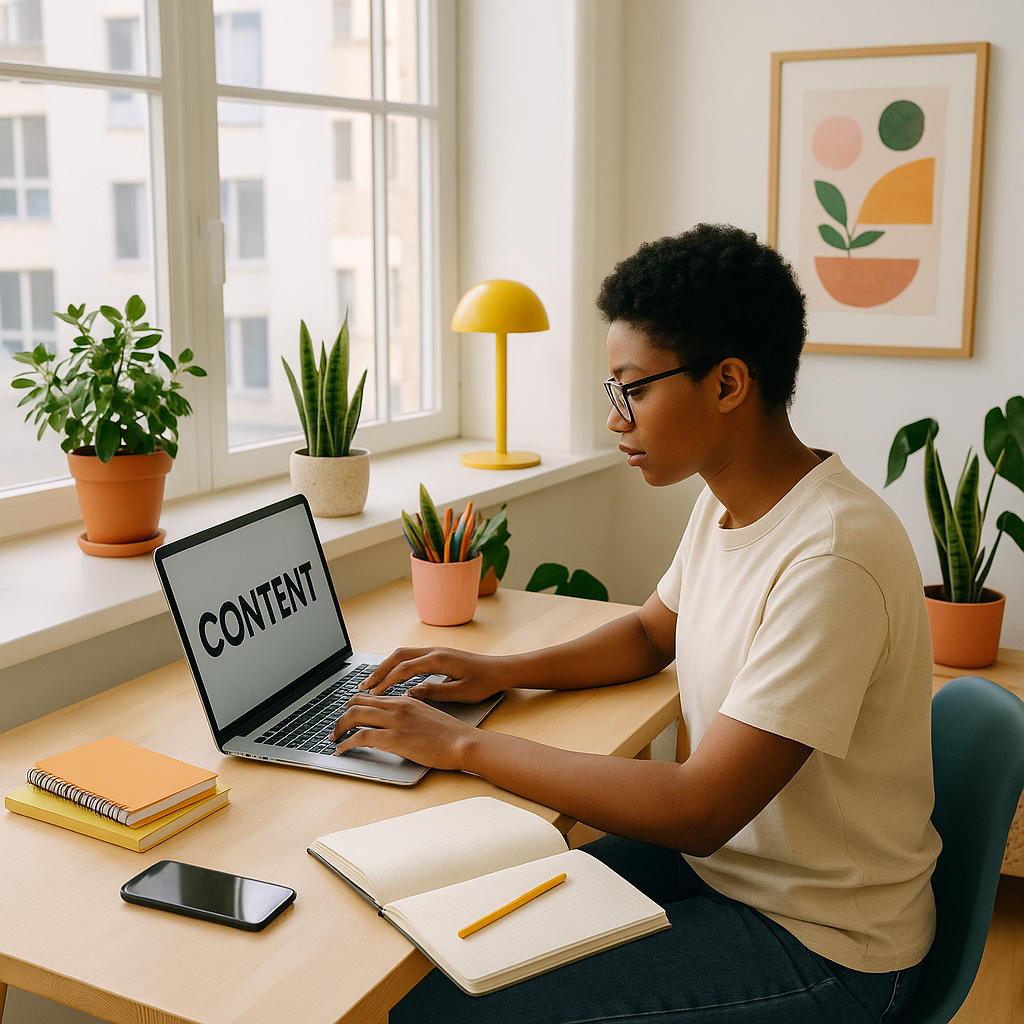
Creator / Content Maker: "Wide 3:1 banner, clean minimal workspace with laptop, notebook, and coffee, natural window light, soft warm tones, top-down angle, no clutter, no text."
Developer / Tech Professional: "Wide landscape banner, dark code editor interface visible on multiple monitors, subtle blue and purple ambient lighting, modern desk setup, cinematic composition, photorealistic."
Fitness / Wellness: "Wide 3:1 banner, outdoor sunrise running trail, long road ahead, soft golden light, motion blur suggesting speed, energetic mood, no text."
Small Business / Product: "Wide landscape banner, flat lay of handmade ceramic mugs on a linen surface, soft natural light from left, earthy tones, clean and elegant, no text, product photography style."
Cost: What This Actually Runs You
A Twitter banner on ATXP Pics costs a few cents. There's no subscription, no monthly charge, and your balance never expires. If you generate five versions to find the one you love, you've spent less than a dollar.
Compare that to the alternatives:
| Option | Cost | Commitment | |---|---|---| | ATXP Pics | ~$0.05–0.10 per image | None — pay per image | | Canva Pro | $15/month | Monthly subscription | | Midjourney Basic | $10/month (~$0.07/image) | Monthly, charged even idle months | | Hiring a designer | $50–200+ per banner | One-off, but high lead time |
If you make one banner every few months, a subscription means paying $10–15/month for something you barely use. Pay-per-image is the only model that makes sense for occasional creators.
Create your Twitter banner now →
Common Mistakes to Avoid
The most common mistake is writing a prompt that's too vague. "A cool background for a tech person" produces generic results because there's nothing specific for the AI to work with. The more concrete detail you give—lighting, objects, colors, mood, style—the closer the result is to what you actually want on the first try.
Other mistakes worth avoiding:
- Asking for text in the image. AI-generated text is unreliable. Add any words you need in a separate tool or in Twitter's own profile editor.
- Ignoring the left-center zone. Your profile photo overlaps the bottom-left of your banner. Leave that area relatively clear or use a design that works with an image sitting on top of it.
- Stopping at one generation. The first result is a starting point. Two or three iterations almost always produce something noticeably better.
Your Banner, Done in Minutes
Your Twitter/X header is a silent first impression that works every time someone lands on your profile. With an AI image generator for Twitter banner creation, you don't need design skills, expensive software, or a subscription you'll forget to cancel. Describe what you want, generate, refine once or twice, and upload.