Getting an AI portrait from a description requires knowing which details actually move the needle. This guide breaks the process into clear steps, shows you what to include (and what to skip), and gives you real, copy-able prompts you can use right now.
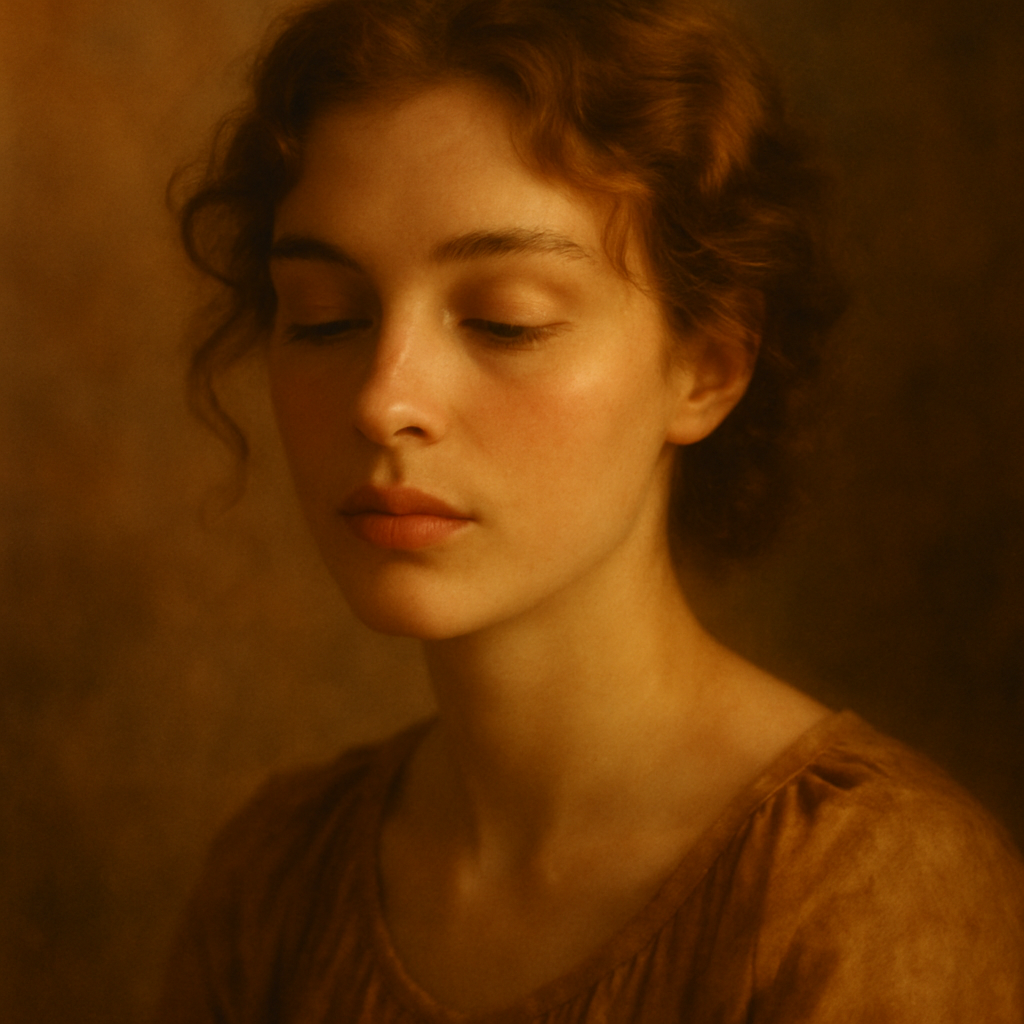
Quick answer: Describe the person's age range, skin tone, hair, eyes, and expression first — then add lighting, background, and photo style. That order of specificity is what separates a vague result from a portrait that looks like the person you had in mind.
What Makes a Portrait Description Work
The AI reads your description left to right, weighting earlier words more heavily — so front-load the details that matter most. A description that opens with "a professional headshot" immediately sets the right visual frame before you've said anything about the person. One that opens with "beautiful" gives the AI almost nothing useful.
Think of your description as answering four questions in order:
- Who — age, gender, ethnicity, key facial features
- How they look — expression, hair, eyes, skin
- Where they are — background, setting, environment
- What style — photorealistic, illustrated, editorial, cinematic
Get those four answered and you're already ahead of most prompts.
Step 1: Start With the Person's Core Features
Open with the details that make this person identifiable. Age range is more useful than an exact number — "mid-30s" gives the AI room to render naturally. Skin tone, hair color, hair length, and eye color are the highest-leverage details after that.
What to include:
- Age range ("late 20s", "mid-50s")
- Skin tone (use descriptive terms: "warm brown", "fair with freckles", "deep ebony")
- Hair: color, length, texture, style ("shoulder-length auburn waves", "close-cropped silver hair")
- Eyes: color and shape ("almond-shaped green eyes")
- Distinguishing features: beard, glasses, jawline, freckles, dimples
What to skip at this stage:
- Abstract compliments ("gorgeous", "striking") — they don't render
- Personality traits ("kind", "fierce") — save those for the expression
Step 2: Set the Expression and Mood
Expression is the single biggest factor in whether a portrait feels alive. "Smiling" is a start, but "slight smile, warm and relaxed" gives the AI a specific emotional register to hit.
Useful expression and mood cues:
- "Confident, direct gaze into camera"
- "Soft smile, looking slightly off-camera"
- "Serious, neutral expression, strong eye contact"
- "Mid-laugh, natural and candid"
- "Thoughtful, looking down slightly"
Pair the expression with a mood word — warm, moody, bright, intense — and you give the style section something to echo.
Step 3: Describe the Lighting and Background
Lighting changes a portrait more than almost any other variable. "Natural window light from the left" and "dramatic studio lighting with a dark background" will produce two completely different images of the same person. Be explicit.
Lighting options that work well
soft natural light from a window— flattering, realisticgolden hour backlight— warm, glowing edgesstudio three-point lighting— clean, professionalovercast outdoor light— even, no harsh shadowsdramatic side lighting— high contrast, moody
Background options
blurred neutral gray background— classic headshoturban street, shallow depth of field— editorial feelplain white background— clean and versatileforest, soft bokeh— natural and organicoffice interior, slightly out of focus— professional context
Step 4: Specify the Photo Style
Photo style tells the AI what kind of image you want, not just what's in it. Without it, results can drift between illustrated, cinematic, and photographic unpredictably.
Style cues to try:
photorealistic portraiteditorial headshot, shot on 85mm lensprofessional LinkedIn headshotoil painting portrait, classical styledigital illustration, soft shadingcinematic color grade, film-like
For most portrait use cases — headshots, profile photos, character references — "photorealistic" is the right starting point.
A Complete Prompt You Can Copy Right Now
Portrait prompt example: "Photorealistic portrait of a woman in her early 40s, warm brown skin, dark brown eyes, natural coily hair pulled back loosely, confident smile with direct eye contact, soft natural window light from the left, blurred neutral gray background, professional headshot style, shot on 85mm lens, shallow depth of field."
This prompt hits all four layers: who, how they look, where they are, and what style. Generate it at ATXP Pics' AI portrait generator → and use it as your starting template.
Common Mistakes and How to Fix Them
The most common mistake is writing a description that's all adjectives and no specifics. "A beautiful young woman with gorgeous hair" generates something, but you have no control over what. Every vague word is a decision you're handing to the AI instead of making yourself.
| Weak description | Stronger version | |---|---| | "Beautiful woman" | "Woman in her late 20s, fair skin, freckles across the nose" | | "Professional look" | "Professional headshot, neutral expression, blurred office background" | | "Nice lighting" | "Soft natural window light from the left side" | | "Realistic photo" | "Photorealistic, shot on Canon EOS, 85mm lens, f/1.8" | | "Dark hair" | "Shoulder-length dark brown hair, straight, with a center part" |
The fix is always the same: replace the adjective with a specific visual fact.
When to Iterate vs. When to Rewrite
If the portrait is close but one detail is off — the hair color, the expression, the background — change only that one thing in your next prompt and keep everything else identical. Changing too much at once makes it hard to know what caused the improvement.
If the result looks completely different from what you expected, the issue is usually in steps 1 or 4 — the core features description or the style cue. Rewrite those sections first.
How Pay-Per-Image Makes Iteration Practical
Experimenting with 3–5 versions of a prompt to dial in the result costs a few cents total at ATXP Pics — not a monthly subscription you're burning through. There's no pressure to get it perfect on the first try, which is exactly when iteration actually works. Your balance carries over indefinitely, so nothing is wasted if you come back to a project later.
No account required to browse, and no payment until you're ready to generate.
The best AI portrait from a description comes from being specific where it counts: age range, skin tone, hair, expression, lighting, and style. Use the prompt template above as your foundation, swap in the details for your subject, and iterate one element at a time.