You want a portrait that looks like it belongs in the Uffizi Gallery, not a social media filter. This guide walks you through exactly how to write prompts that produce convincing Renaissance-style portraits — rich oil-paint textures, dramatic shadows, period-accurate clothing — using an AI portrait generator, with no artistic training required.
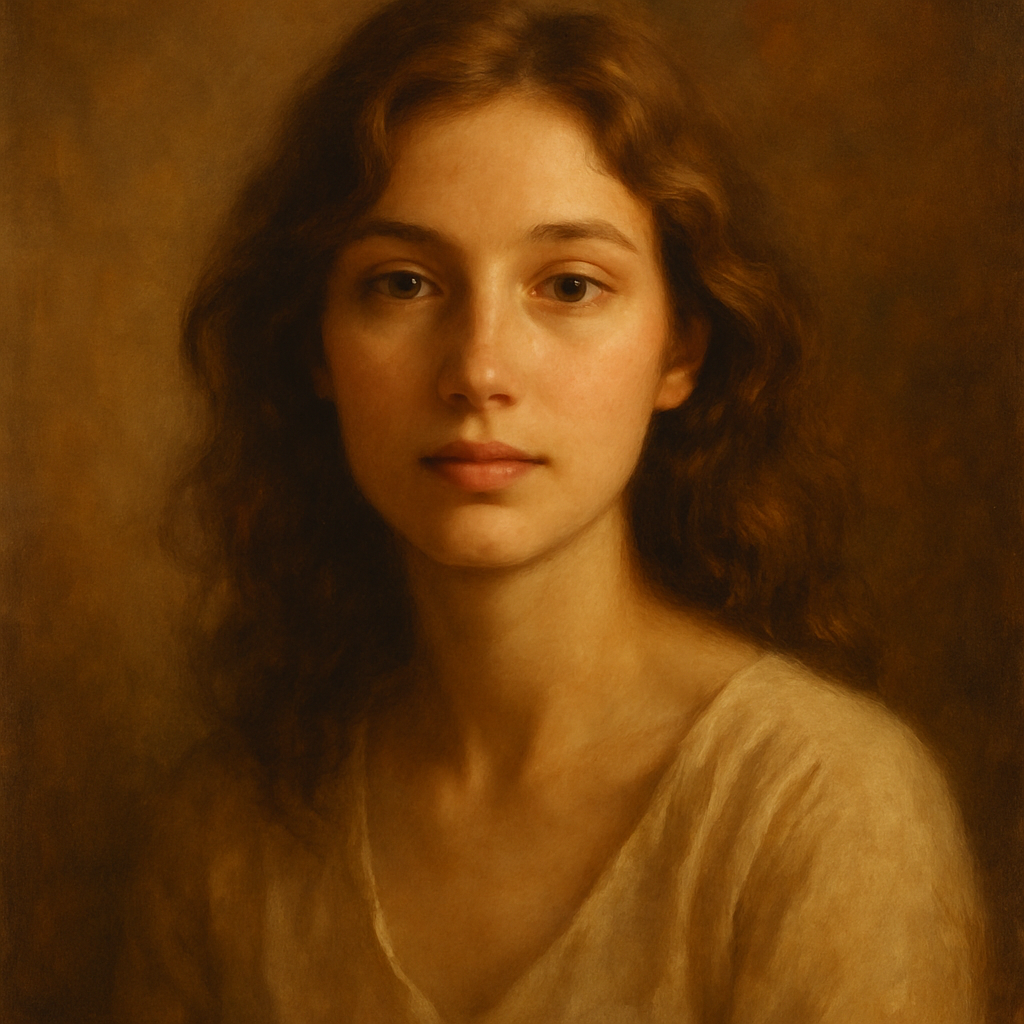
Quick answer: To generate a Renaissance-style AI portrait, describe your subject in detail, then add style keywords like oil on canvas, chiaroscuro lighting, Renaissance master, sfumato edges, dark ochre background, ornate period clothing. The more specific you are about lighting and fabric, the more the result looks like a 15th-century panel painting rather than a generic "vintage photo."
What Makes a Renaissance Portrait Look Authentic
A convincing Renaissance portrait comes down to three things: lighting, texture, and clothing. Get all three right in your prompt and the result is unmistakably classical. Miss one and it reads as a modern photo with a filter applied.
- Lighting: Renaissance painters used single-source, raking light — often from a window to the left. The term chiaroscuro describes the sharp contrast between lit and shadowed areas. Specify this explicitly.
- Texture: Oil paint applied in thin layers (glazing) creates depth that looks different from a photograph. Prompting for "cracked varnish," "visible brushwork," or "impasto highlights" signals this medium convincingly.
- Clothing and props: Velvet doublets, fur-trimmed robes, lace ruffs, pearl earrings, and draped fabric all read as period-accurate. A plain modern shirt will break the illusion immediately.
Step-by-Step: How to Write a Renaissance Portrait Prompt
Renaissance prompts reward specificity. Follow these steps in order and build your description layer by layer.
Step 1 — Describe the Subject
Start with the person: gender, approximate age, hair color and style, skin tone, and expression. Keep this grounded and specific.
Example: "A woman in her late 30s, auburn hair pinned under a white linen cap, pale complexion, calm and direct gaze"
Step 2 — Add Period-Accurate Clothing
Replace any modern clothing detail with era-appropriate alternatives. Look to the Italian Renaissance (1400s–1500s) or Northern European painters (Rembrandt, Vermeer, van Eyck) for reference.
- Italian: silk brocade, gold embroidery, low square necklines, pearl jewelry
- Northern European: black wool doublets, white lace collars, fur trim, dark velvet
Step 3 — Set the Lighting
Name the lighting style explicitly. "Single candle from the left," "north window light," "chiaroscuro, deep shadows on the right side of the face" all produce very different moods.
Step 4 — Specify the Medium and Style
Tell the generator what kind of painting this should look like.
"Oil on panel, Renaissance portrait, sfumato technique, cracked aged varnish, dark umber background, in the style of Leonardo da Vinci"
Step 5 — Define the Composition
Most Renaissance portraits use a three-quarter view (the subject turned slightly), a plain dark background, and the figure cropped at the chest or waist. Specify this to avoid a full-body or centered composition.
"Three-quarter view, bust-length portrait, plain dark olive background, hands visible at lower frame"
Full Prompt Examples You Can Copy
Portrait of a merchant, Italian Renaissance style: "Three-quarter bust portrait of a middle-aged man, dark beard, olive skin, wearing a deep red velvet doublet with gold buttons and a white linen shirt beneath, calm and composed expression, single window light from the upper left casting sharp shadow on the right cheek, oil on panel, Renaissance master style, dark umber background, visible brushwork, sfumato edges, cracked varnish texture, in the manner of Hans Holbein the Younger"
Portrait of a noblewoman, Northern Renaissance style: "Bust-length portrait of a young woman, pale complexion, dark brown hair pulled back under a black velvet hood with white lace trim, small pearl earrings, dark blue wool gown with embroidered cuffs, slight downward gaze, candlelight from the left, deep shadow on the right, oil on panel, Northern Renaissance style, plain dark background, glazed paint layers, sfumato, aged varnish cracking"
Both prompts can be typed directly into ATXP Pics' AI portrait generator → — no account required to start, and no subscription means you only pay for the images you keep.
Common Mistakes That Break the Renaissance Effect
The most common mistake is mixing eras — describing Renaissance clothing but asking for "soft natural lighting" or "bokeh background," which reads as modern photography. Every element of the prompt needs to point in the same direction.
Avoid These Prompt Patterns
| What people write | Why it fails | What to write instead | |---|---|---| | "Renaissance style photo" | "Photo" signals modern camera look | "Oil on panel, Renaissance painting" | | "Soft studio lighting" | Reads as contemporary portrait | "Chiaroscuro, single candle left" | | "Plain white background" | Modern default, not historical | "Dark umber background, deep shadows" | | "Casual expression, slight smile" | Breaks the formal classical mood | "Composed, direct gaze, neutral expression" | | "Wearing a suit / dress" | Anachronistic clothing | "Velvet doublet / brocade gown" |
Don't Forget the Background
A plain white or blurred background immediately reads as modern. Renaissance portraits almost always used dark, neutral backgrounds — deep brown, olive black, or very dark green — which pushed the subject forward visually. Include a specific background color in every prompt.
How Much Does It Cost
Each image on ATXP Pics costs a few cents — there is no monthly subscription. That matters when you're experimenting with style variations: trying a Rembrandt lighting version, a da Vinci sfumato version, and a Flemish portrait version costs roughly the same as a single coffee.
Compare that to a subscription tool billed monthly:
| Scenario | Midjourney Basic ($10/mo) | ATXP Pics (pay-per-image) | |---|---|---| | 5 images this month | $2.00 per image | A few cents per image | | 20 images this month | $0.50 per image | A few cents per image | | 0 images next month | $10 charged anyway | $0 charged |
Your balance on ATXP Pics never expires, so the credits you load for this project are still there whenever you come back to it.
Getting the Most From Your Renaissance Portrait
Run at least two or three variations of the same prompt before settling on a final image. Change one variable at a time — the lighting first, then the clothing color, then the background tone — so you can see exactly what each adjustment does. Renaissance portraiture has a lot of moving parts, and small prompt edits produce noticeably different results.
If a result looks almost right but the clothing feels too modern, add more fabric detail: name the weave ("ribbed silk taffeta"), the trim ("sable fur collar"), and the fastening ("gold clasp at the throat"). The more tactile the clothing description, the more convincingly painted it appears.
When you're ready to generate, open the AI portrait generator →, paste your prompt, and see your subject placed into a 500-year-old tradition — in seconds, for cents, with no subscription required.