Studio portrait photography typically means booking a photographer, renting a space, and spending hours on a shoot that costs hundreds of dollars before you see a single usable image. An AI studio photography portrait generator collapses that entire process into a text description and a few seconds. This guide walks you through exactly how to do it — from writing your first prompt to getting results that look like they came out of a real studio.
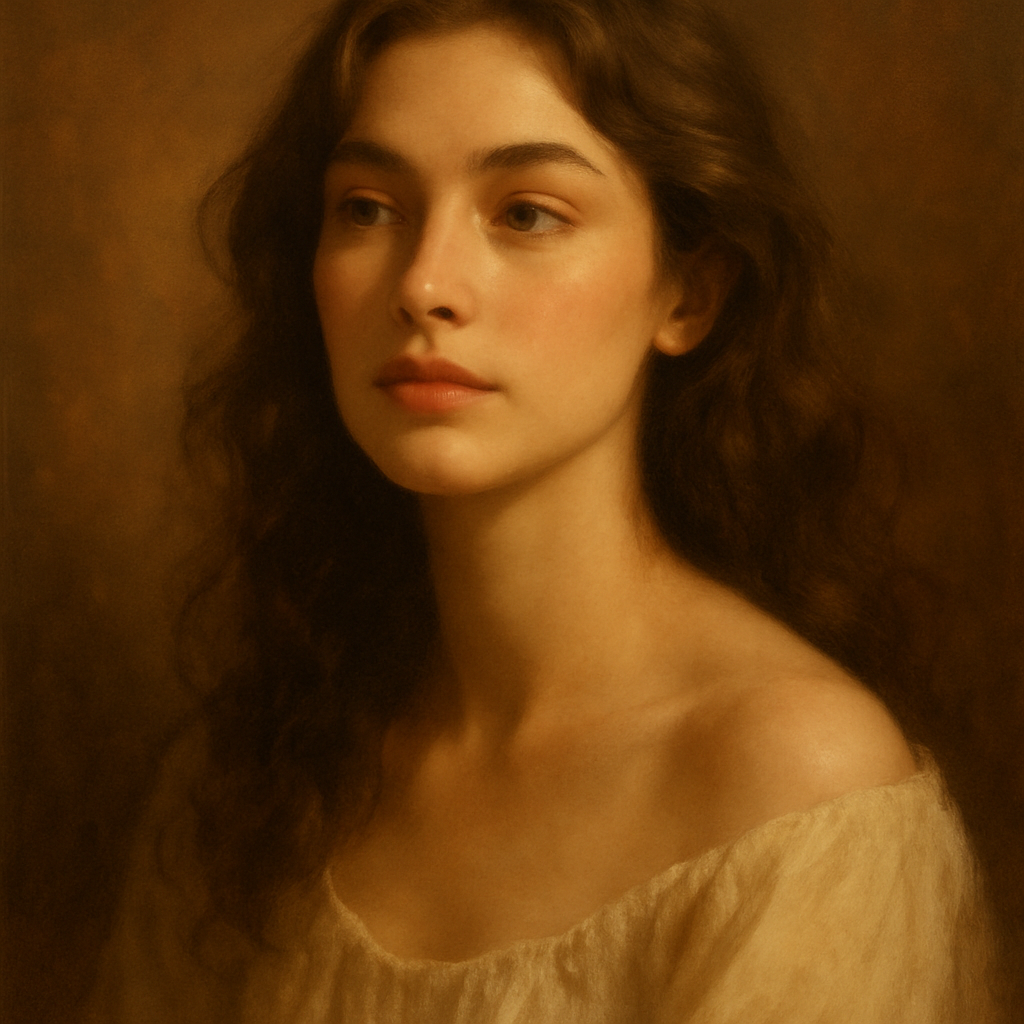
Quick answer: An AI studio photography portrait generator lets you describe a subject, lighting setup, and background in plain English and receive a professional-quality portrait in seconds. No camera, no studio booking, and no design skills are required. On a pay-per-image platform like ATXP Pics, you pay a few cents per image with no monthly commitment.
What Makes a Portrait Look "Studio Professional"
Studio portraits have three defining characteristics: controlled lighting, a clean background, and deliberate composition. When you describe these three elements precisely in your prompt, the AI has everything it needs to produce a result that reads as professional rather than casual.
The specific elements to nail:
- Lighting direction — Is the light coming from the front, the side, or slightly above?
- Light quality — Hard and dramatic, or soft and diffused?
- Background tone — Neutral gray, warm white, deep black, or a subtle gradient?
- Subject framing — Head and shoulders, three-quarter, or full body?
- Expression and wardrobe — What does the subject's clothing and expression communicate?
Vague prompts produce vague results. The more specific you are about these five elements, the less time you spend regenerating.
How to Write a Prompt That Gets It Right the First Time
Start with the subject, then layer in lighting, background, and mood — in that order. This structure mirrors how a photographer thinks when setting up a shot, and it gives the generator a clear hierarchy to work from.
The four-part prompt structure
- Subject — describe the person (age range, features, expression, clothing)
- Lighting — name the style and direction ("soft box from camera left," "Rembrandt lighting," "diffused natural light")
- Background — be specific ("seamless light gray studio backdrop," "dark charcoal gradient background")
- Technical style — camera feel, sharpness, depth of field ("shot on medium format, shallow depth of field, sharp focus on eyes")
Prompt example
Professional headshot of a woman in her late 30s, warm smile, wearing a dark navy blazer, soft diffused studio lighting from camera left, subtle catch light in eyes, seamless light gray backdrop, shallow depth of field, sharp focus on face, medium format photography style
This prompt covers every variable a photographer would control before pressing the shutter. Copy it, modify the subject details, and you have a working starting point for almost any professional portrait.
What to avoid
- "Professional portrait" alone — too vague; the generator fills in the blanks unpredictably
- "Studio lighting" without direction — you'll get inconsistent results across generations
- Symmetrical feature descriptions — phrases like "perfectly symmetrical face" push results into uncanny territory
- Overloaded prompts — more than 60–70 words often dilutes the most important details
Step-by-Step: Generating Your First Studio Portrait
The full process takes under five minutes, including prompt refinement.
- Go to ATXP Pics' AI portrait generator →
- No account or payment required to start — add a balance when you're ready to generate
- Type your prompt using the four-part structure above
- Review the result — identify the one element that's furthest from what you wanted
- Edit only that element in your prompt and regenerate
- Repeat until the result matches your vision (most prompts land in 2–3 iterations)
The key to fast iteration is changing one variable at a time. If you rewrite the whole prompt between generations, you lose track of what actually made the difference.
Cost Comparison: AI Portrait vs. Studio Shoot vs. Subscription Tools
The cost difference between an occasional-use subscription and pay-per-image is significant once you do the math.
| Option | Cost | Images included | Cost per image | |---|---|---|---| | Professional studio shoot | $150–$500 | 10–30 selects | $15–$50/image | | Midjourney Basic | $10/month | ~150/month | $0.07/image — but charged every month | | Midjourney at 5 images/month | $10/month | 5 images used | $2.00/image | | ATXP Pics | Pay per image | No limit | A few cents each |
The subscription math only works in your favor if you're generating hundreds of images every single month. For anyone who needs portraits occasionally — a new LinkedIn photo, updated team headshots, a profile image for a new project — pay-per-image is almost always cheaper.
Four Portrait Styles Worth Trying
Beyond the standard neutral-background headshot, studio lighting setups open up a range of professional portrait styles.
- Corporate headshot — Soft front lighting, light gray background, business attire, direct eye contact with the camera
- Rembrandt portrait — Single light source at 45 degrees, creating a small triangle of light under one eye; works well for dramatic, authoritative looks
- High-key white background — Bright, evenly lit, white backdrop; common for speakers, authors, and media appearances
- Dark and dramatic — Deep charcoal or black background, strong side lighting, moody expression; suits creative professionals and personal brands with a bold aesthetic
Each style has a different emotional register. Match the style to how you want the subject to be perceived, not just to what looks impressive.
Common Mistakes and How to Fix Them
Most unsatisfying portrait results come from one of three prompt problems.
Lighting that looks flat
Fix: Add a specific direction. Change "studio lighting" to "soft box from camera left, slight shadow on right side of face."
Background that looks fake or noisy
Fix: Name the background material. "Seamless paper backdrop in warm off-white" produces more consistent results than "clean background."
Subject looks generic
Fix: Add one specific detail about wardrobe, expression, or posture. "Slight smile, one shoulder turned toward camera, open collar" gives the generator something to anchor on.
Studio portrait photography has always been about controlling variables. An AI studio photography portrait generator gives you those same controls — lighting, background, framing, expression — through plain-language descriptions instead of physical equipment. The results are professional, the process is fast, and the cost is a fraction of a real shoot.