You want a watercolor portrait — something soft, handcrafted-feeling, and genuinely personal — and you're wondering whether AI can actually pull it off or whether you'll end up with something that looks like clip art dipped in pastel. This guide walks you through exactly how to prompt for an AI watercolor portrait that looks considered and specific, not generic.
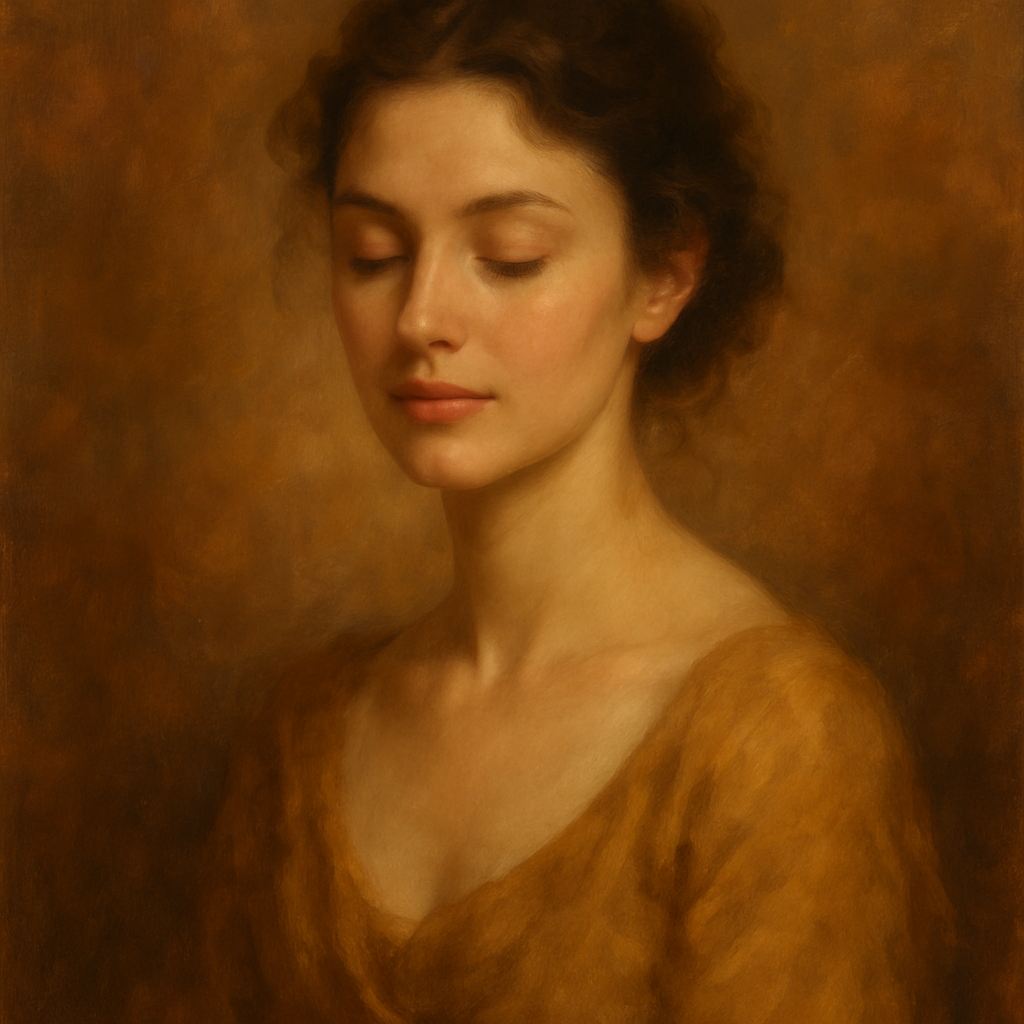
Quick answer: An AI watercolor portrait is generated by writing a detailed text description that specifies subject, lighting, color palette, and watercolor style cues (wet-on-wet washes, visible paper texture, loose brushwork). The more specific your prompt, the more personal the result. No design skills required — just a clear description and a few seconds.
What Makes a Watercolor Portrait Feel Personal
The difference between a generic watercolor and a striking one is specificity in three areas: the subject's features, the light source, and the color palette. A prompt that says "watercolor portrait of a woman" produces something pleasant but forgettable. A prompt that says "soft watercolor portrait of a woman in her 40s, warm ochre skin tone, dappled afternoon light from the left, loose cobalt and burnt sienna washes, white paper showing through at the highlights" produces something that feels like it was made for a reason.
Watercolor as a style has its own vocabulary, and dropping a few of those terms into your prompt shapes the result immediately:
- Wet-on-wet — colors bleed and bloom into each other; soft, dreamlike edges
- Wet-on-dry — sharper edges, more controlled, almost illustrative
- Granulation — the grainy texture you see in pigment-heavy washes
- Visible paper texture — tells the generator to preserve a rough, fibrous quality
- Ink underdrawing — fine line detail beneath translucent color layers
You don't need to use all of these at once. Pick the two or three that match what you're imagining.
Step-by-Step: Prompting an AI Watercolor Portrait
Generating a strong watercolor portrait takes about four deliberate choices. Work through them in order.
Step 1: Define the subject
Start with who is in the portrait. Be specific about age range, features, and expression — not because the generator needs clinical accuracy, but because vague inputs produce averaged, unmemorable faces.
Example: "elderly man, deep-set eyes, close-cropped silver beard, slight smile"
Step 2: Set the light
Lighting direction and quality change the whole emotional register of a watercolor. Flat light reads as illustrative and calm. Strong side light adds drama and depth.
Example: "warm late-afternoon light from the right, casting soft shadow across the left cheek"
Step 3: Choose your palette
Name specific colors rather than broad categories. "Blue" is vague. "Prussian blue and raw umber with warm cream highlights" tells the generator exactly what tonal range you're working in.
Example: "palette of muted rose, warm grey, and dusty gold — nothing saturated"
Step 4: Specify the watercolor technique
This is the step most people skip, and it's where the result goes from "pretty" to "considered." Choose one or two technique cues from the list above.
Example: "wet-on-wet washes, visible paper texture, fine pencil underdrawing, white space preserved in highlights"
Put it all together and your prompt looks like this:
Soft watercolor portrait of an elderly man with deep-set eyes, close-cropped silver beard, and a slight smile. Warm late-afternoon light from the right. Palette of muted rose, warm grey, and dusty gold. Wet-on-wet washes with visible paper texture and a fine pencil underdrawing. White space preserved at the forehead and cheekbone highlights. Painterly, quiet mood.
That's a single paragraph. It takes thirty seconds to write and produces a result that looks intentional.
Common Mistakes to Avoid
The most common mistake is under-describing the style and over-describing the subject. People spend six sentences on physical features and one word on technique — then wonder why it looks flat. The watercolor treatment is half the image; give it half the prompt.
Three other things that routinely weaken watercolor portrait results:
- Asking for photorealism — watercolor and hyperrealism work against each other. Let it be loose.
- Too many competing color temperatures — warm and cool contrast is good; five different hues fighting each other produces mud.
- Skipping the background — "plain white background" is a valid choice, but "soft wash of cerulean fading to white" does more for the portrait feeling.
How to Iterate Quickly
The fastest way to improve a result is to change one variable at a time. Don't rewrite the whole prompt after the first image. Instead, keep what's working and adjust one element — swap the lighting direction, change two colors, or add "loose gestural brushwork" to see how the treatment shifts.
Three to five iterations is usually enough to land on something you're happy with. At a few cents per image and no subscription, that's a negligible cost to experiment.
Generate your AI watercolor portrait →
What to Use Your Portrait For
AI watercolor portraits are genuinely versatile output — they work across personal and professional uses without looking out of place in either.
- Profile photos — watercolor portraits have a warmth and distinctiveness that stands out against standard headshot photography
- Printed gifts — a watercolor portrait of a person, pet, or couple prints beautifully on matte paper or canvas
- Book covers and editorial illustration — the style reads as literary and considered
- Social media headers and author bios — softer than a photo, more personal than a logo
- Memorial portraits — the medium carries an emotional weight that photography sometimes doesn't
For professional headshot-style portraits, the AI portrait generator gives you fine control over mood, framing, and style. If you're creating portraits for a brand or product context, the AI product mockup generator handles that use case specifically.
The Honest Case for Pay-Per-Image
If you want one watercolor portrait — or ten across the next few months — a monthly subscription doesn't make sense for you. At $10/month on platforms like Midjourney, you're paying for images you may never generate. At 5 images in a month, that's $2.00 per image whether you count it that way or not.
On ATXP Pics, you pay a few cents per image. Your balance never expires. You can generate one portrait today, come back in four months for another, and never lose what you loaded. No subscription means no pressure to "get your money's worth" in a given month — you just create when you need something.
A strong AI watercolor portrait isn't about finding the right tool and hoping for the best. It's about giving the generator enough specific information — subject, light, palette, technique — to produce something that feels made for a reason. Follow the four steps above, iterate on one variable at a time, and you'll have something worth printing in under ten minutes.