You've been putting off redoing your YouTube channel art because hiring a designer feels like overkill and the free template tools all look the same. An AI channel art generator skips both problems — describe what you want, get a high-quality image in seconds, and move on with your day.
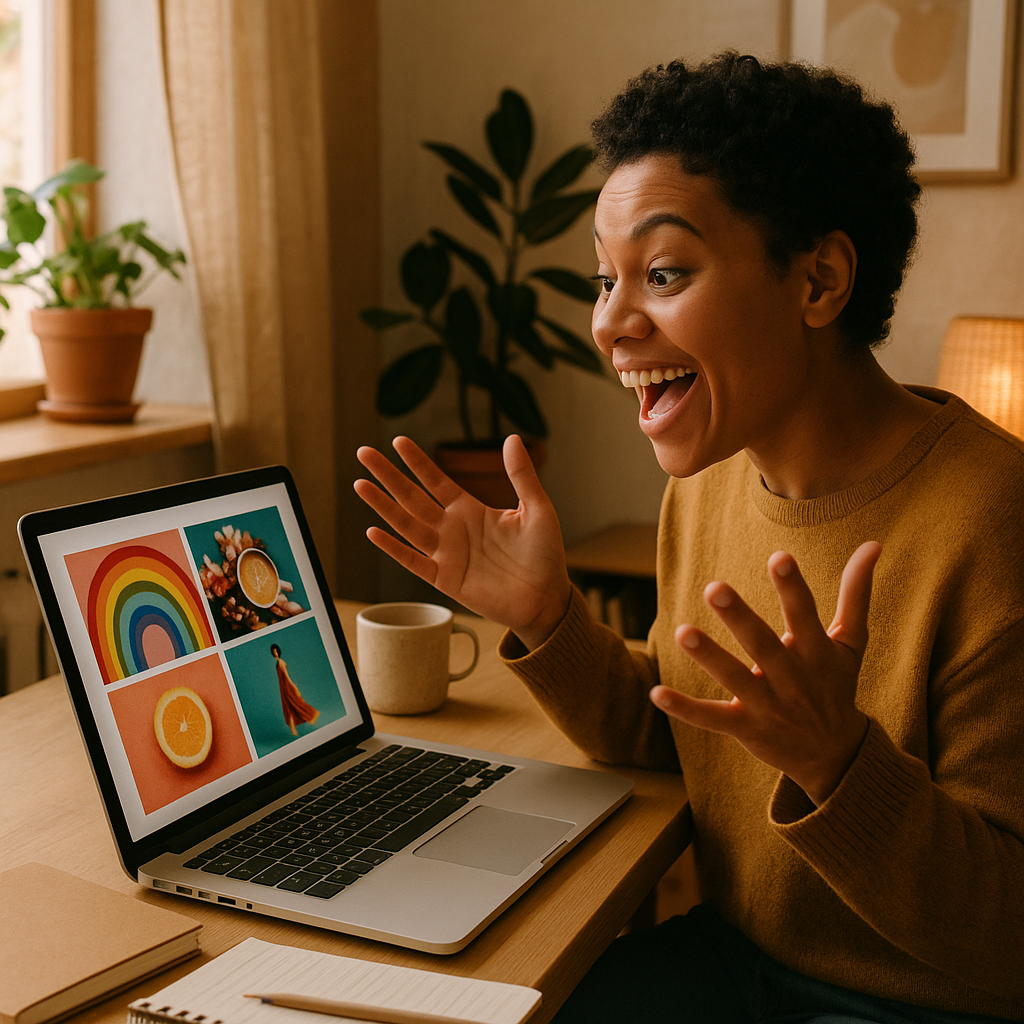
Quick answer: Type a description of your channel's vibe, subject, and color palette into an AI image generator. You'll have a custom banner image in under a minute. No design experience needed, no monthly fee required.
What Makes Good YouTube Channel Art
Strong channel art does one job: tell a visitor instantly what your channel is about. A cooking channel should feel warm and appetizing. A tech review channel should look clean and modern. A gaming channel can go dark, neon, and high-energy. The image doesn't need to contain your channel name — YouTube overlays that — but it should set a tone that matches your content.
The technical requirement is 2560×1440 pixels. More importantly, the center 1546×423 pixels is the "safe zone" visible on every device. Keep your most important visual elements inside that rectangle. When you generate an image, a horizontal panoramic composition works best — wide, cinematic framing naturally fills the banner space.
How to Use an AI Channel Art Generator
Using an AI image generator for channel art takes three steps: write a prompt, generate, download. No account setup beyond adding a small balance, no waiting for a designer to come back with revisions.
Here's the workflow:
- Decide your niche and visual style — dark and dramatic, bright and minimal, illustrated, photorealistic.
- Write a prompt that includes your subject, color palette, mood, and composition style.
- Generate the image, download the full-resolution file, and upload it in YouTube Studio under Customization → Branding → Banner image.
Each image at ATXP Pics costs a few cents. There's no subscription. If you don't love the first result, regenerate with a small prompt tweak — you'll spend less than a dollar landing on something you're genuinely happy with.
Writing Prompts That Actually Work
The difference between a generic result and a great banner is specificity in your prompt. Vague prompts produce vague images. Concrete prompts produce usable ones.
Start with your subject, add a setting, layer in a color palette, then finish with a composition or lighting note.
Cooking channel example: "Overhead shot of a rustic wooden table covered in fresh vegetables, herbs, and a cast iron skillet, warm golden-hour lighting, rich earthy tones, wide panoramic composition"
Gaming channel example: "Dark futuristic arena with glowing neon blue and purple accents, dramatic low-angle perspective, cinematic lighting, ultra-wide banner format"
Fitness channel example: "Athlete silhouette at sunrise on a mountain peak, bold orange and red gradient sky, wide landscape shot, motivational energy"
Copy these directly or swap in the details that fit your channel. The key is to include at least one color reference and one lighting or mood word — those two elements shape the feel of the image more than anything else.
Cost Comparison: AI Generator vs. Other Options
Casual creators and small channels rarely need a design tool every month. The math shifts dramatically when you pay only for what you use.
| Option | Cost | Channel Art Images | Effective Cost Per Image | |---|---|---|---| | Fiverr designer | $15–$50 | 1 (with revisions) | $15–$50 | | Canva Pro | $15/month | Unlimited templates | $15/mo whether you use it or not | | Midjourney Basic | $10/month | ~150 images | $0.07/image — but $10 regardless | | ATXP Pics | Pay per image | As many as you need | A few cents each, balance never expires |
If you update your channel art four times a year, a monthly subscription charges you for the eleven months you didn't use it. Pay-per-image means you spend money when you actually create something.
Matching Your Channel Art to Your Brand
Consistent channel art reinforces your brand every time someone lands on your page. Once you generate a banner you like, note the exact colors and style words from your prompt — that becomes your visual reference for thumbnails, end cards, and profile photos.
For example, if your banner prompt used "muted teal and warm cream tones, soft cinematic lighting," use those same descriptors when you generate thumbnails. Over time, your channel develops a recognizable look without you needing a full brand guide or a designer on retainer.
ATXP Pics' social media image creator lets you generate matching assets — profile pictures, thumbnail backgrounds, end card visuals — all from the same simple prompt interface. No subscription, same pay-per-image pricing across every format.
Uploading and Fitting Your Banner in YouTube Studio
YouTube crops your banner differently on desktop, tablet, and mobile, so preview all three before publishing. Once you've generated and downloaded your image:
- Go to YouTube Studio → Customization → Branding
- Click Upload under Banner image
- Use YouTube's built-in preview to check how it crops on TV, desktop, tablet, and mobile
- If the crop cuts something important, regenerate with the subject shifted toward the center of the image
The whole process — generating, downloading, uploading, previewing — takes under ten minutes. If the crop isn't right, one more generation costs cents, not another design revision cycle.
Create Your Channel Art Today
Your channel art is the first thing a potential subscriber sees. A compelling, on-brand banner tells them they're in the right place before they've watched a single second of your content.
No subscription. No design software. No waiting. Describe your channel's vibe, generate a banner in seconds, and upload it today.